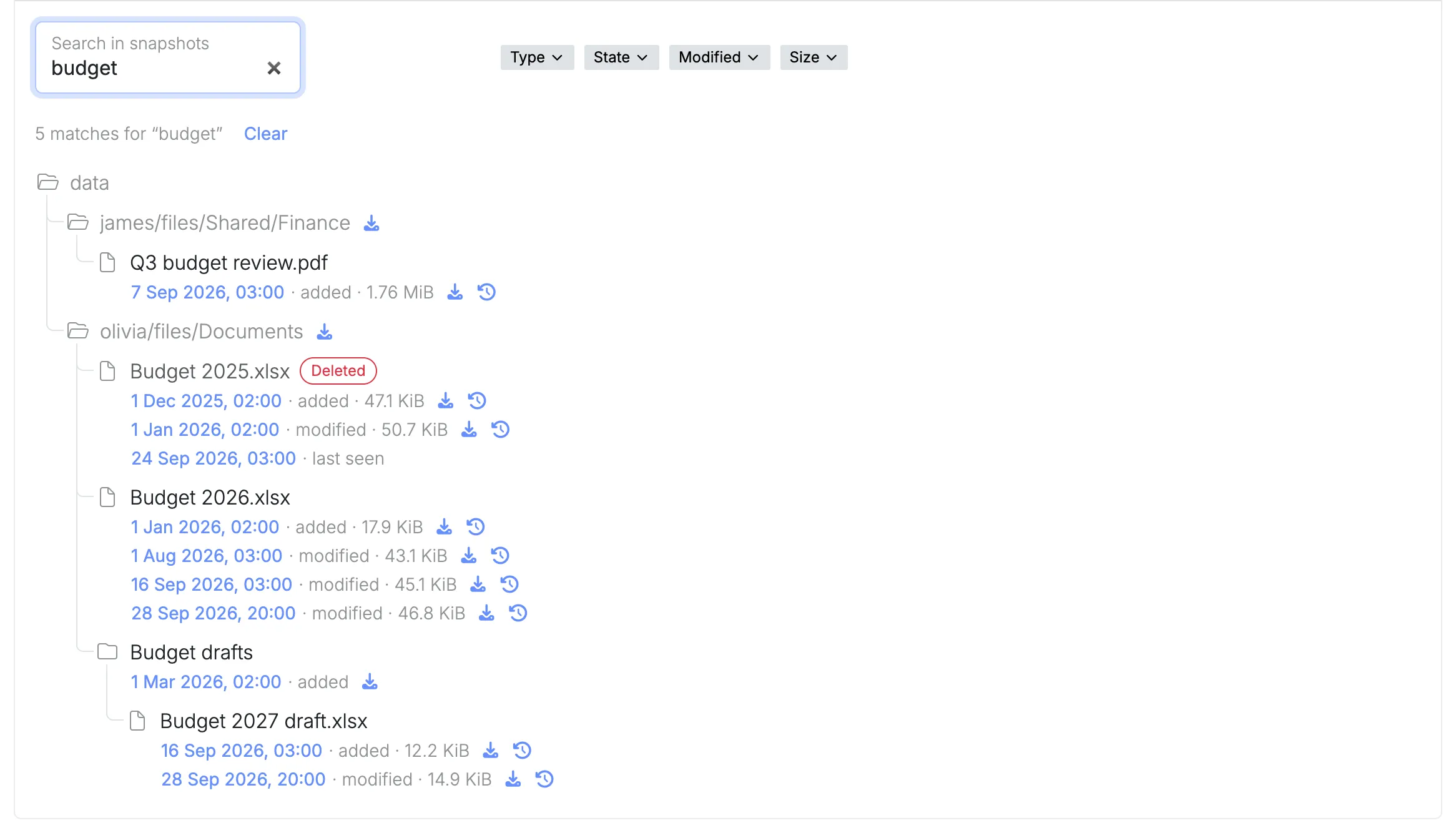
It is the end of September and Olivia opens the firm’s budget. The figures she agreed on in the summer are gone: someone has worked over the file since, more than once, and saved. Nothing was deleted, so the trash bin is empty, and nobody remembers which day it happened.
With Nextcloud on a virgoOS node this is a few minutes of work. This post follows it from start to finish, and then does the same for a whole folder.
Why the trash bin is not enough
Nextcloud has a trash bin, and for a file deleted last week it is the place to look first. It keeps deleted files for at least 30 days, and the person who deleted the file can take it out again without asking anyone.
It does not help with Olivia’s budget. The file was never deleted, it was changed, and the trash bin only holds what was thrown away. It also does not help with a file deleted in spring and missed in autumn.
For those there is the layer underneath. The node’s storage pool takes a snapshot for each of the last 36 hours, 30 days, 60 months and 5 years. Each one is a read-only copy of the data as it was at that moment. In an app’s details they appear as restore points, on a timeline under Snapshots.
Every app has restore points, but only Nextcloud’s can be opened to get files back. Everything below is about the files people keep in Nextcloud.
Finding it by name
Nobody knows when the budget went wrong, but everyone knows what it is called. That is enough.
In Nextcloud’s details, under Snapshots, type part of the name into Search in snapshots and press Enter. The search looks through every restore point at once: everyone’s own files, what is in their trash, and the group folders.
Each file in the results has under it the restore points that hold a version of it, with what happened to it there and its size. For Budget 2026.xlsx that reads like a short history: added on 1 January, modified by 1 August, modified again on 16 and 28 September. The August version is the one Olivia wants.
The search works because the node catalogues the files in Nextcloud’s snapshots by itself, every hour at ten past. There is nothing to turn on.
Putting one version back
Every version has two buttons next to it: one downloads it to your computer, the other restores it into Nextcloud.
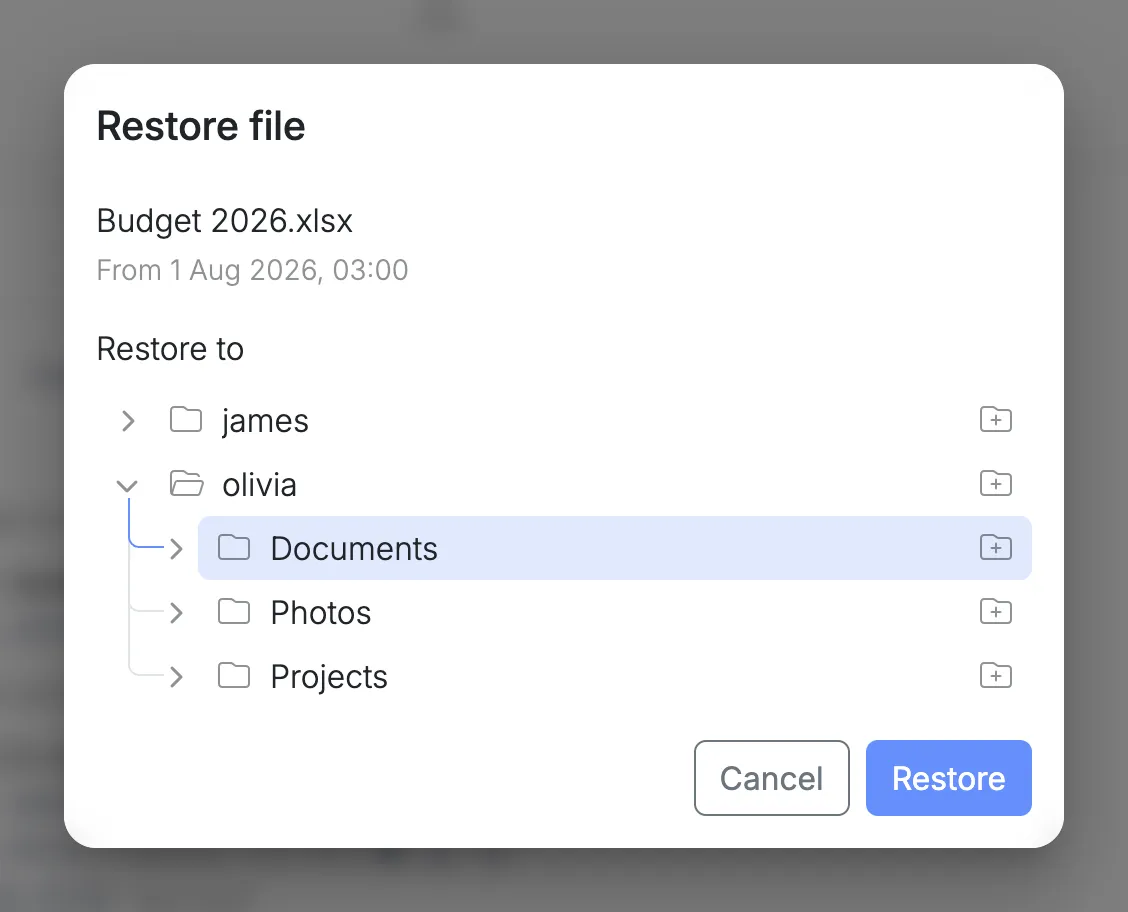
Select the restore button on the 1 August version. Restore file opens with the folder the file was in already selected, so in the usual case you only confirm. You can also choose another folder, of any Nextcloud user, or add a new one.
The budget still exists in that folder, in its September form, so the node does not restore anything yet. It shows the two files side by side, each with its size and when it was last changed, and asks.
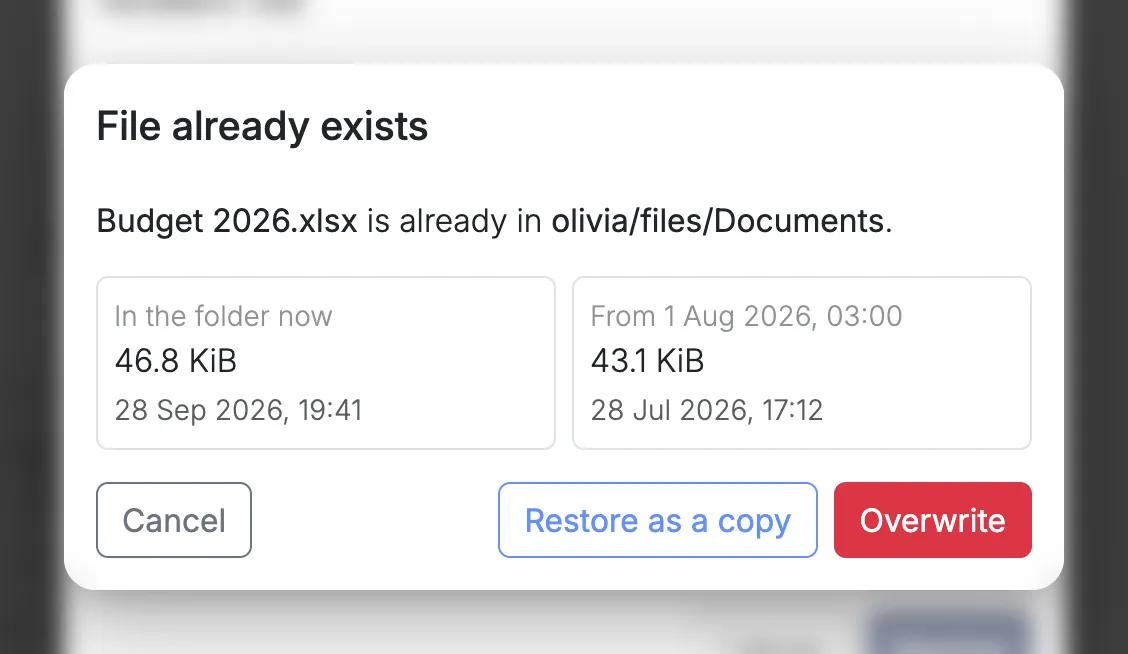
Restore as a copy keeps the file that is there and puts the August one next to it, as Budget 2026 (restored 1 Aug 2026).xlsx. Nothing is lost, and Olivia can compare the two. Overwrite replaces the September file with the August one.
Either way, the file shows up in Olivia’s Nextcloud by itself. The restore point is not touched, so the same version can be restored again.
When it is more than one file
Sometimes the name is not what you know. You know that a folder was cleaned out too eagerly, or that a sync went wrong on a certain day. Then you start from the date.
Choose a restore point from before it happened and select Browse files. It opens Nextcloud as it was then, user by user and folder by folder. The Now column compares each item with what Nextcloud holds today: unchanged, modified, renamed, moved or deleted.
A big folder is mostly unchanged files, so the column has a filter. Tick Deleted, and the list shows only what has been deleted since, with a count on every folder that has such files somewhere inside.
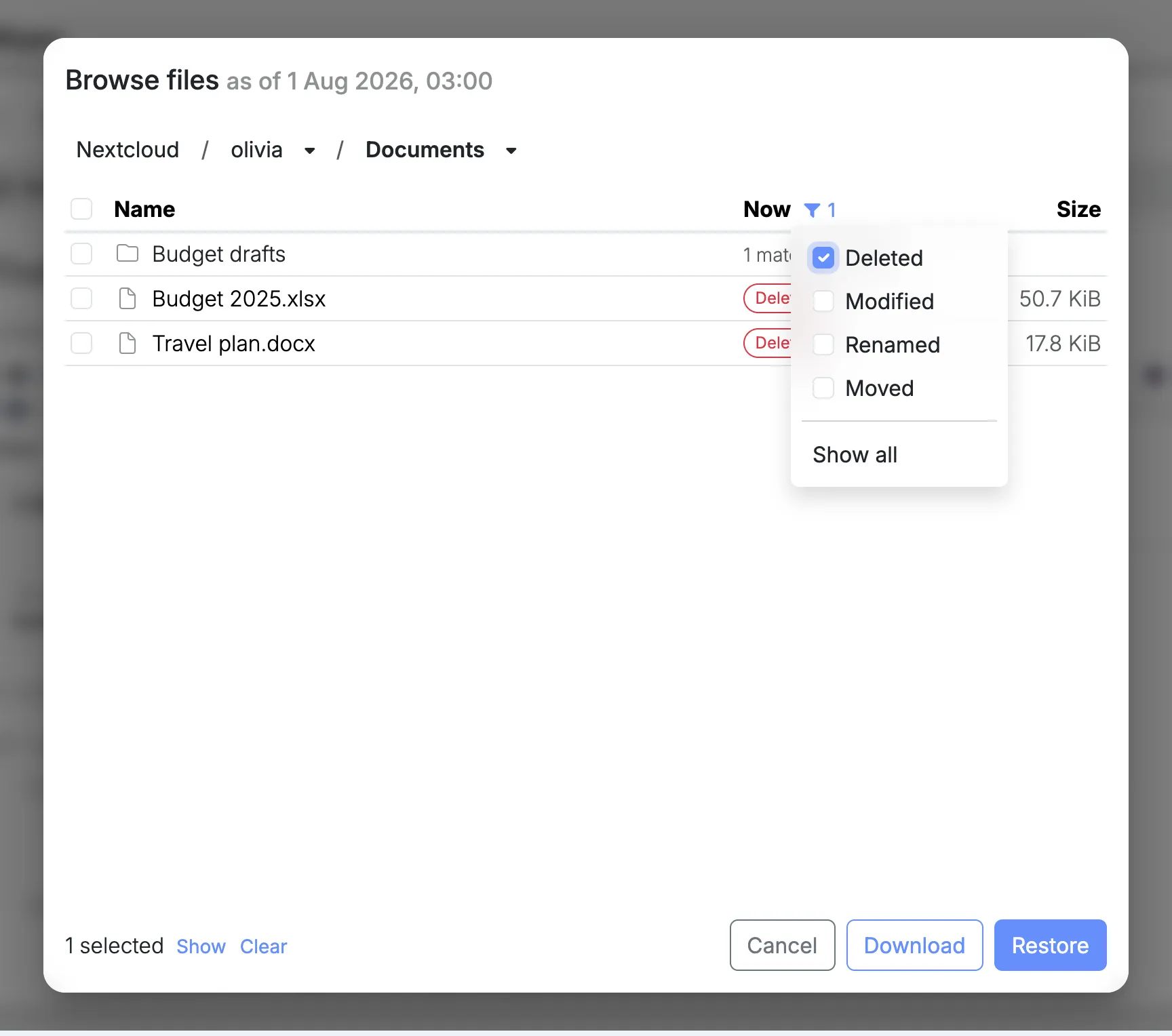
With the filter on, ticking a folder selects only the matching files inside it, at any depth. The selection is kept while you move around, so files from several folders and several users can be collected in one go.
Restore then puts all of it back into the folder you choose, in a new folder of its own named after the restore point’s date, such as Restore (1 Aug 2026).
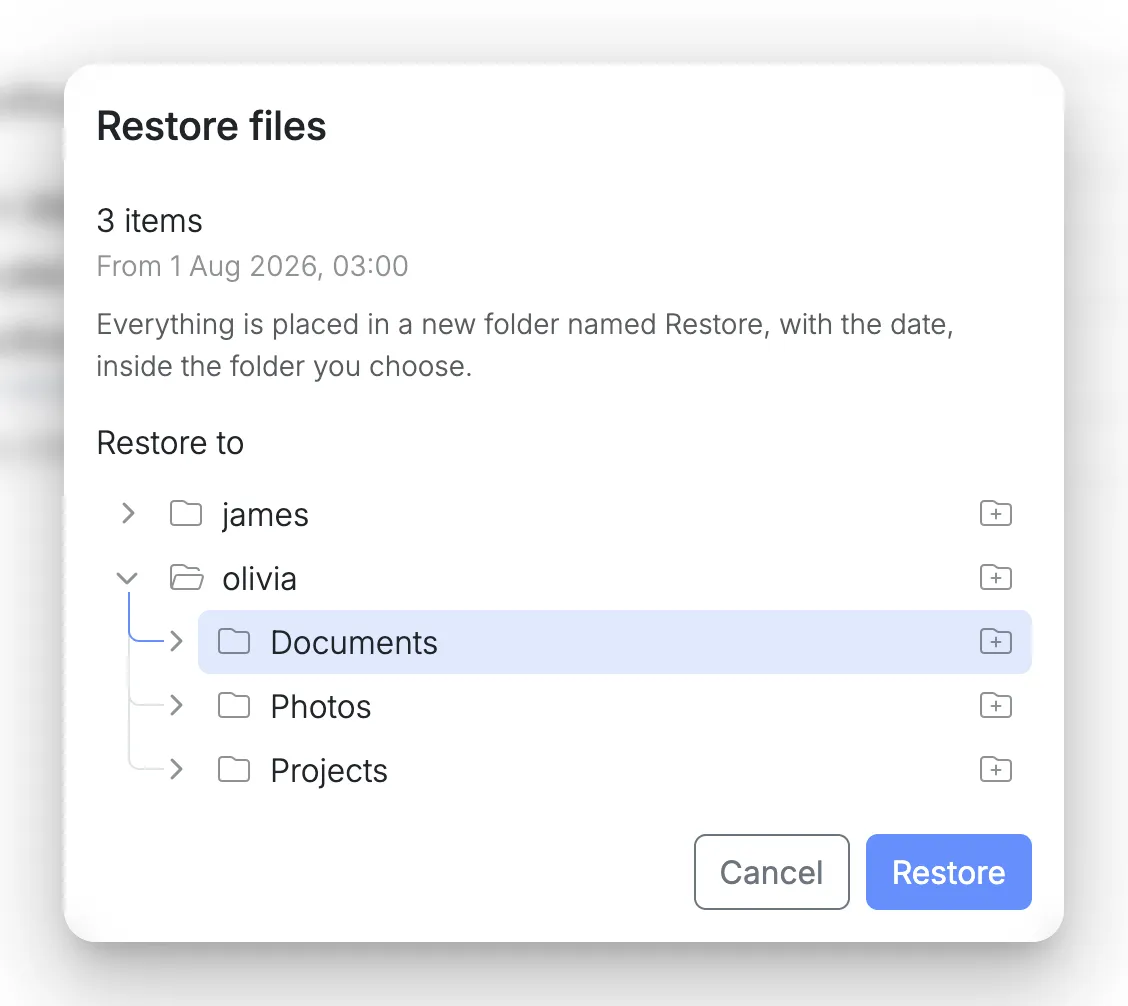
A selection always arrives in its own folder, so nothing that is in Nextcloud now gets replaced. The person opens it, moves what they need to where they want it and deletes the rest. It also works when the original place is gone: the files of a colleague who has left can be restored to someone who is still there.
The same route is the one to take if ransomware encrypts the files. The restore points are read-only, so the ones from before still hold every file as it was.
How far back
The recent restore points are close together and the old ones far apart. A change from today can be undone to the hour, and one from this month to the day. A file from two years ago is there as it was at the start of a month or of a year.
A version that existed only between two restore points was never captured. Work that was typed and overwritten within the same hour is not in the history.
Downloading asks for one more thing: it is not available when you manage the node through your fleet, so open the node at its own address for that. Restoring works either way.
Where to go next
- Snapshots covers restore points and the timeline.
- Searching files, Browsing files and Restoring files cover each step in full.
- Nextcloud on your own node, or OneDrive compares this history with what a cloud provider keeps.